PrettyShot guide
Create beautiful screenshots & photos on your phone in seconds. Take your screenshots
Download PrettyShot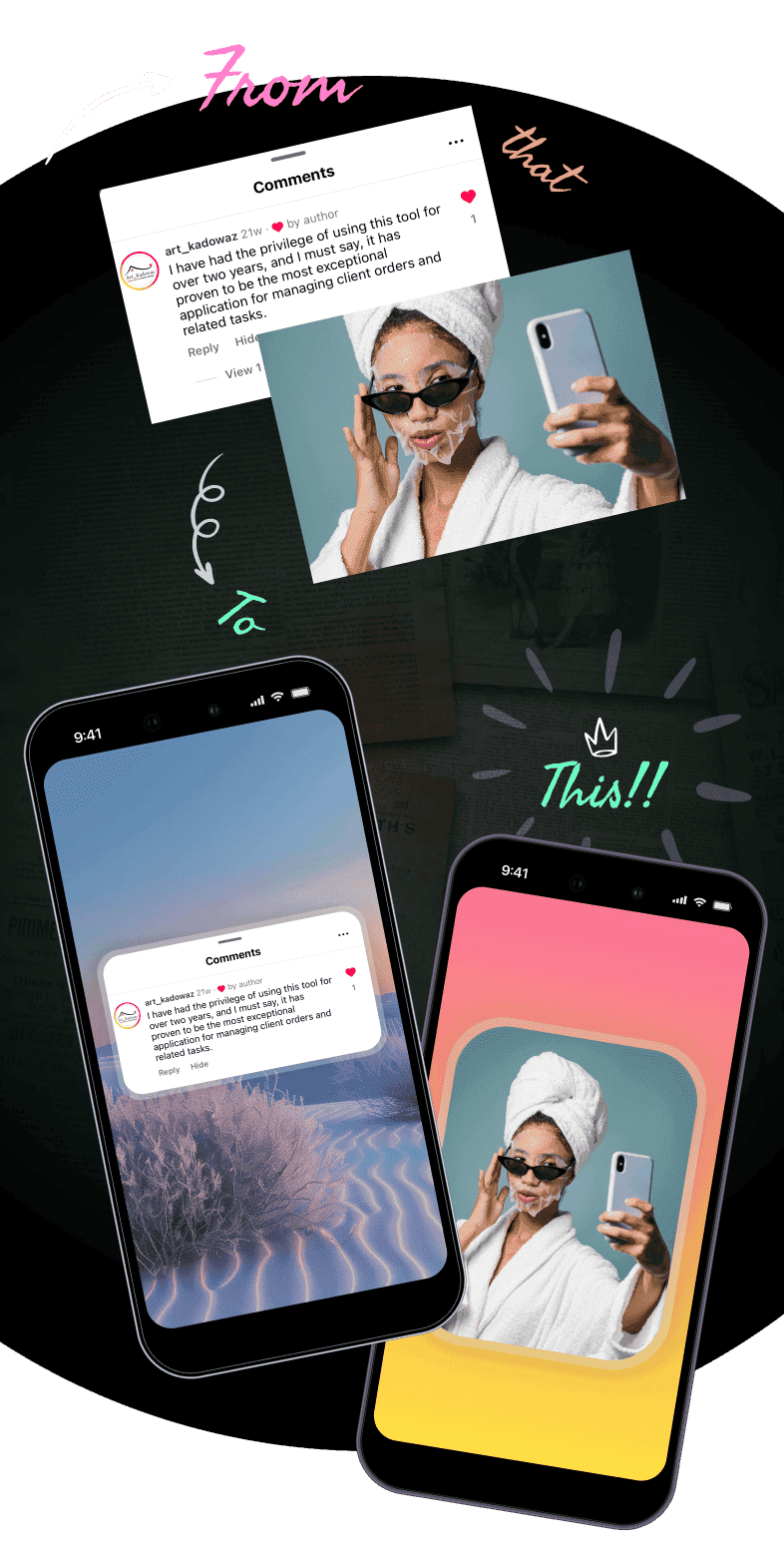

...And never post ugly screenshot ever again!
The quick route
Pick a screenshot or photo from your phone and crop it to the part worth sharing.
Choose a wallpaper, gradient, or color. Then tune spacing, corners, inset, and shadow.
Select Original, Tall, Square, or Landscape and save a version made for its destination.
Learn the craft
PrettyShot guide
PrettyShot guide
PrettyShot guide

PrettyShot guide
PrettyShot guide
PrettyShot guide
Questions, answered
The practical details about styling, protecting, and exporting screenshots on your phone.
A screenshot editor helps you prepare a screen capture for sharing. PrettyShot adds backgrounds, gradients, spacing, rounded corners, shadows, and export formats without requiring a desktop design app.
Learn more →Import the screenshot into PrettyShot, open Background, then choose a wallpaper, gradient, solid color, or clear canvas. The preview updates while you browse so you can judge the contrast before exporting.
Learn more →Yes. PrettyShot includes controls for rounded corners, padding, and inset. Use padding to create breathing room around the capture, then set the corner treatment to match the background and destination.
Learn more →Use Square for a flexible feed post, Tall for Stories and other vertical placements, Landscape for wide posts, or Original when the platform does not require a fixed canvas. Check the crop preview before saving.
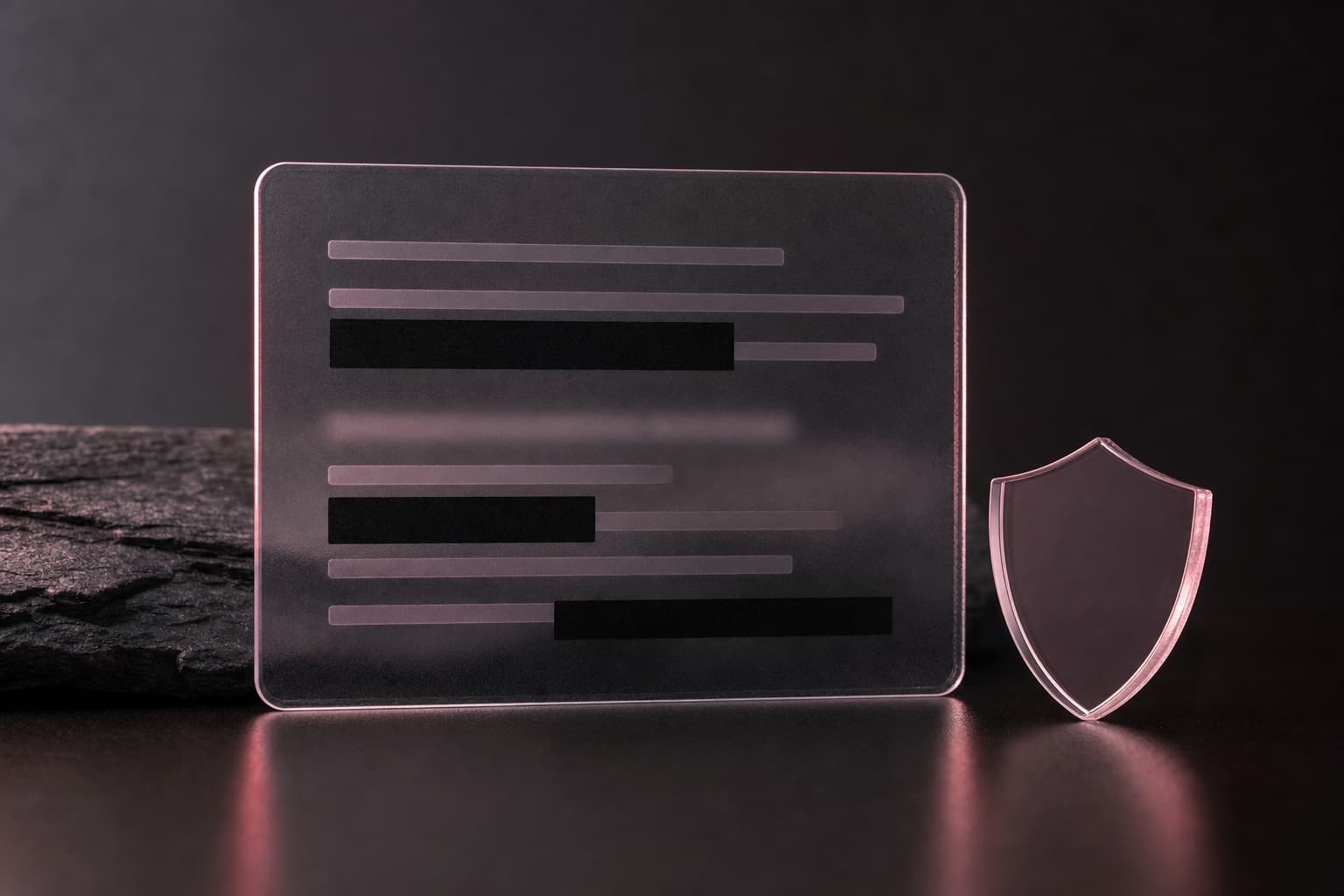
Learn more →PrettyShot can detect text regions and lets you blur, redact, highlight, underline, or strike selected text. Use a solid redaction when the information must be completely hidden.
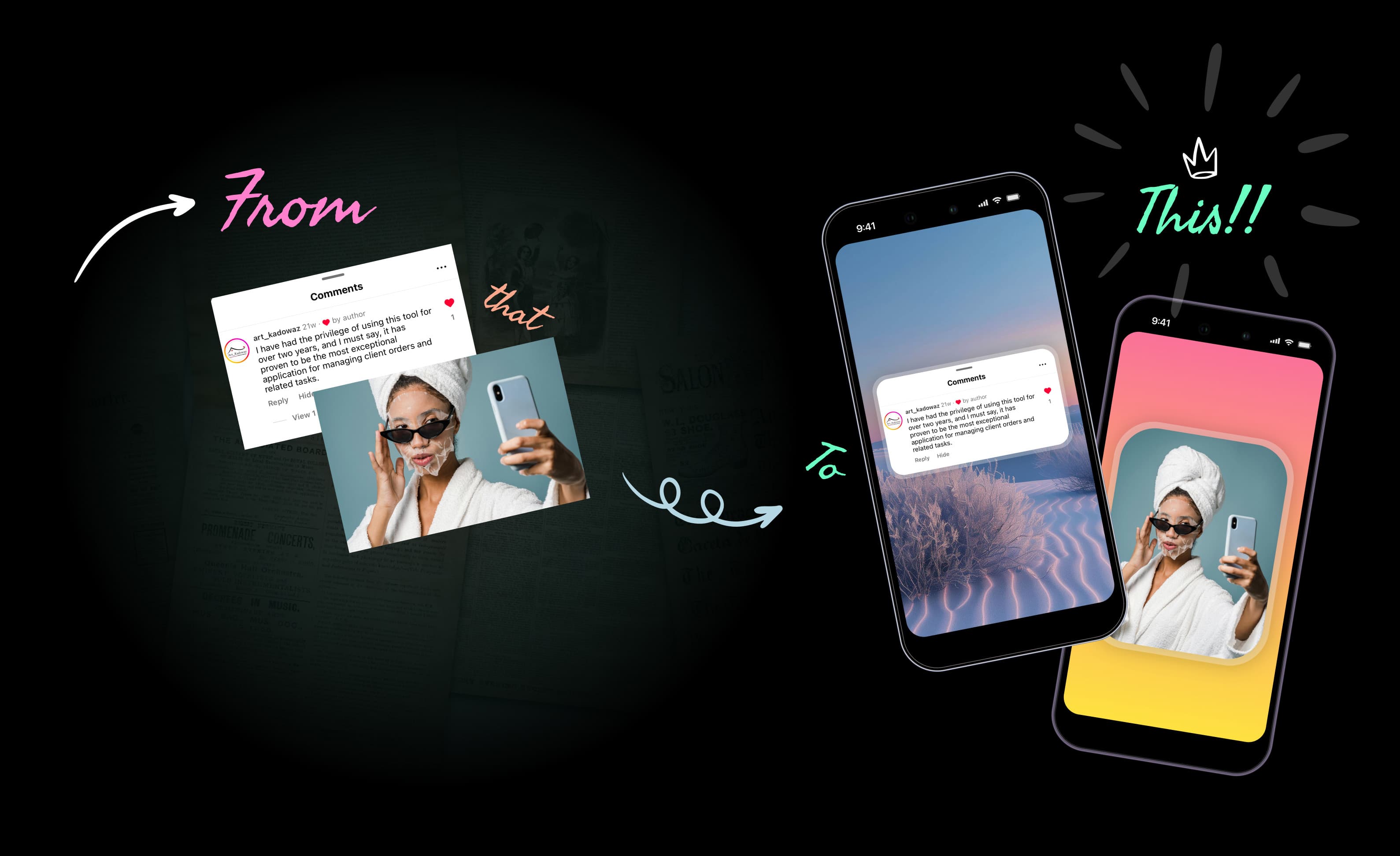
Learn more →Yes. Capture the testimonial, crop out unrelated interface, place it on a readable background, and export it in the ratio used by the destination feed. Keep the customer name visible only when you have permission.
Learn more →Yes. PrettyShot is available on the Apple App Store and Google Play. The same core screenshot styling workflow is available on both platforms.
The current App Store and Google Play privacy disclosures state that PrettyShot does not collect data. The website also does not use advertising trackers or analytics cookies.



Standing-by to help you get the most out of PrettyShot. You can DM or E-mail for support


The developer does not collect any data from this app.
PrettyShot app does not collect any of your data and doesn't track you. This website does not use any cookies or trackers.