PrettyShot guide
How to turn testimonials into social media posts
Capture the testimonial with permission, crop it to the quote and useful source context, place it on a background with enough contrast, then export a square or tall version for the social feed. Keep the words readable and avoid decorating the post more than the quote needs.

The short version
- 01
Get permission
Confirm that the customer is comfortable with the quote and visible identity details.
- 02
Capture and crop
Keep the testimonial, source context, and only the interface needed for credibility.
- 03
Frame the quote
Use a quiet background, balanced padding, and moderate corners.
- 04
Export for the feed
Save square and tall versions when the post will appear in several placements.
Permission comes before design
A public comment is visible online, but republishing it in marketing can create a different context. Ask before using a customer name, photo, company, or private message. Save the approval with the original quote so the team knows exactly what can be shown.
If permission covers the words but not the identity, crop or redact the name, avatar, email address, and any other identifying detail. Do not invent a name or alter the meaning. An anonymous testimonial should be labelled honestly in the post caption rather than disguised as a named endorsement.
Keep enough source context to feel credible
A testimonial is more believable when the viewer can see where it came from. Keep a profile name, review source, or message treatment when permission allows it. Remove navigation, reply controls, reaction counts, and unrelated comments that do not help establish the source.
Crop close enough that the quote remains readable in the feed. If the testimonial is long, highlight the strongest sentence in the post caption or split the material into a carousel. Avoid shrinking an entire page of text into one image that requires zooming.
Choose a background that fits the brand
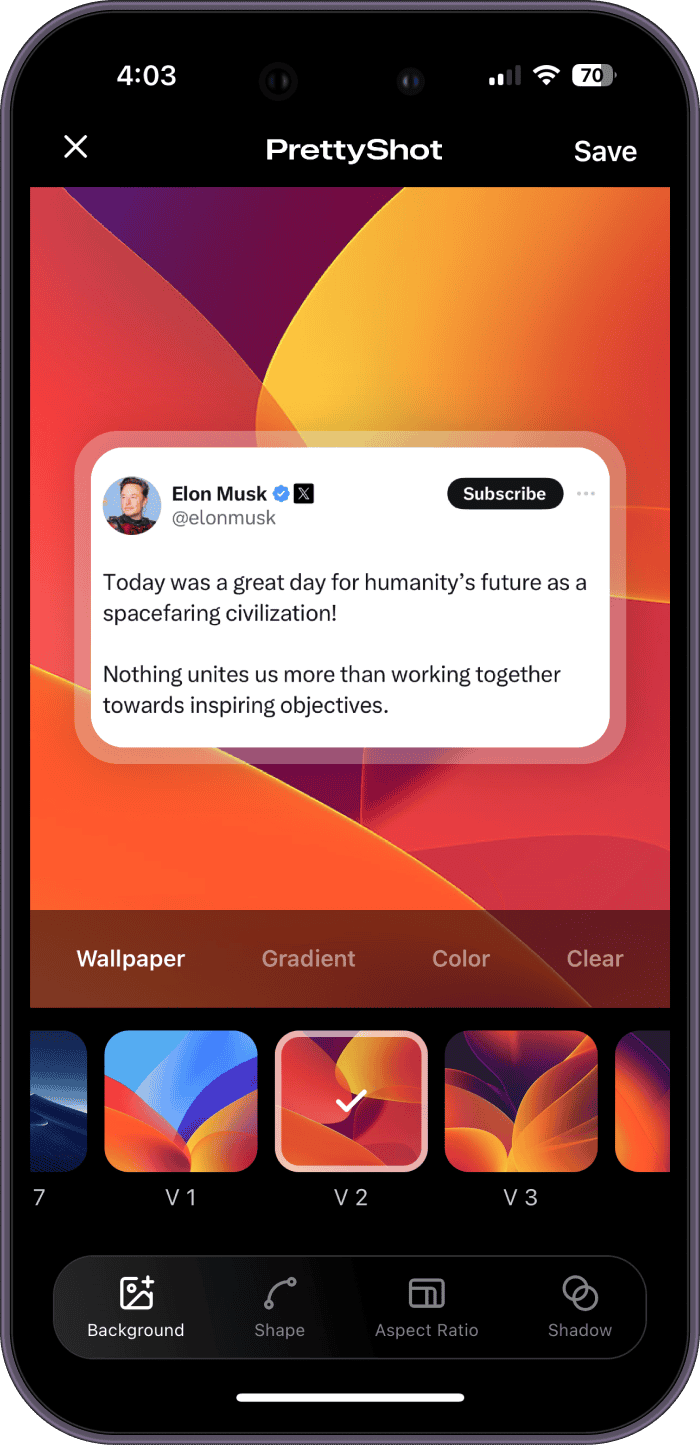
Use a color, gradient, or wallpaper that belongs with your product identity and contrasts with the testimonial card. Bright backgrounds can support launch announcements, while quieter tones suit detailed quotes. The customer words should remain the first thing someone reads.
PrettyShot previews the screenshot on each background. Compare several options at feed size rather than choosing from the swatch alone. A wallpaper may look attractive by itself but become distracting once it sits behind a white review card.
Build a repeatable testimonial frame
Consistency helps a series feel connected. Use the same family of backgrounds, similar padding, and one corner treatment across several testimonials. Let the quote length determine small adjustments, but avoid giving every customer a completely different visual style.
Set the screenshot large enough for normal reading, then add space around it. A soft shadow can separate a white review card from a light background. If the source already has rounded corners, use a compatible outer radius rather than stacking several competing curves.
Prepare the caption and final export
The image should carry the quote, while the caption explains what the customer achieved and links it to the product. Do not repeat every word from the screenshot. Add a concise introduction, relevant product context, and any disclosure required for an incentivized review.
Export Square for broad feed use or Tall when the platform rewards vertical space. Check the post on a phone, confirm that names and private details match the permission, and keep the uncropped original in case you need to prove the source later.
Questions about this workflow
Can I post a customer message without their name?
Only with permission to use the message. Remove all identifying details and describe it as an anonymous customer quote rather than implying a named endorsement.
What background works best for testimonial screenshots?
Use a background with enough contrast for the review card and little detail behind the text. A brand color or quiet gradient is usually easier to read than a busy photograph.