PrettyShot guide
How to redact or blur text in a screenshot
Use a solid redaction when information must be impossible to read. Blur is suitable when you only need to reduce casual visibility, but short or high-contrast strings can remain recognizable. PrettyShot detects text regions so you can select the exact line and apply redact, blur, highlight, underline, or strike.
The short version
- 01
Scan the full image
Check names, avatars, emails, phone numbers, addresses, account data, and notifications.
- 02
Select the text
Use detected text regions to target the complete line or value.
- 03
Choose redact or blur
Use solid redaction for secrets and blur only for low-risk context.
- 04
Inspect the export
Open the saved image and confirm no private detail remains outside the edited region.
Decide what must be hidden
Review the entire screenshot, including status bars, notification previews, avatars, background tabs, and quoted messages. Sensitive information is often outside the area you meant to share. Look for email addresses, phone numbers, street addresses, order details, account identifiers, access codes, and names that do not have permission to appear.
Ask whether the information is necessary to the point. Cropping is the cleanest option when the private detail sits outside the useful area. When cropping would remove context, use a solid redaction or blur the specific region.
Use solid redaction for secrets
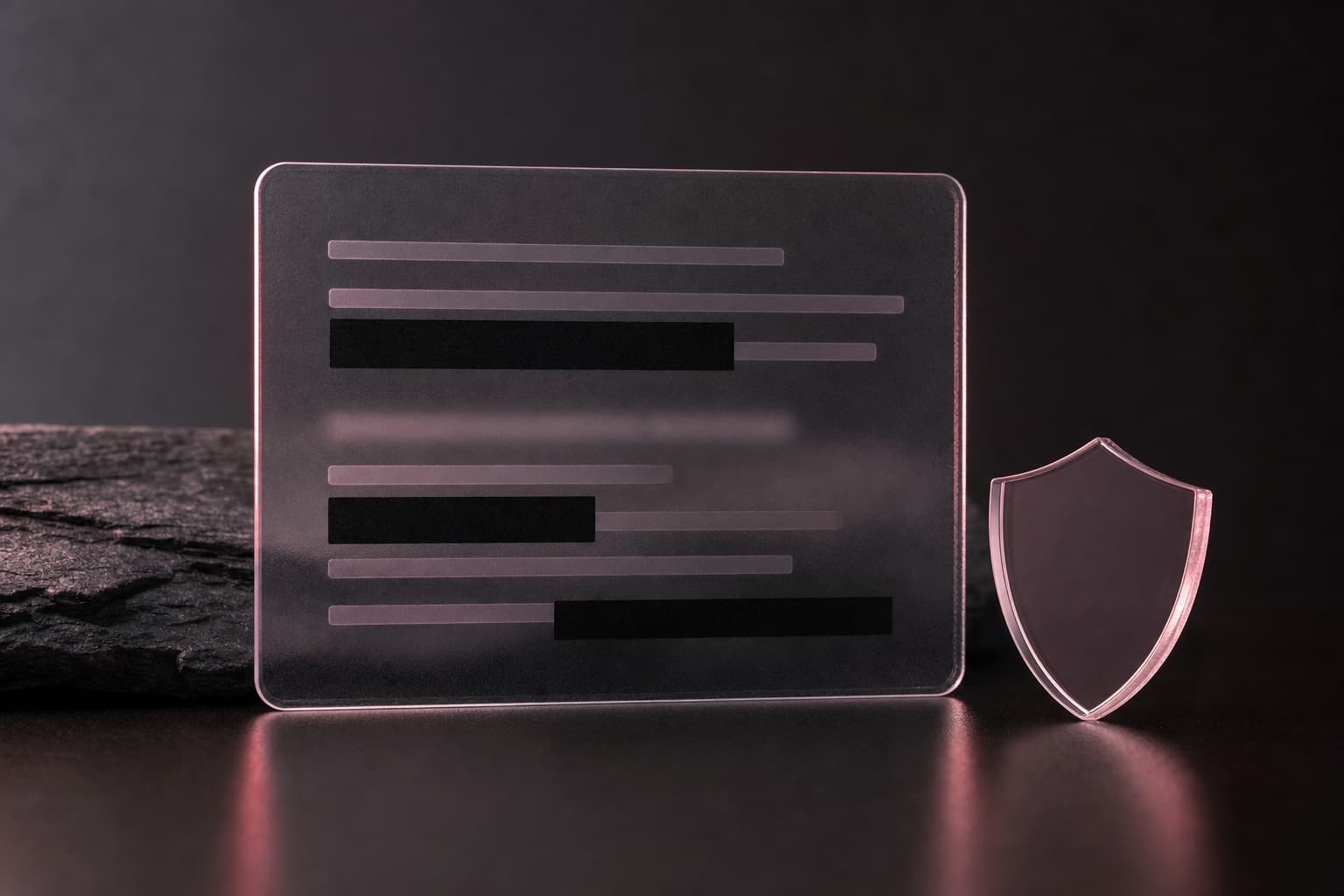
A solid opaque block is the safer choice for passwords, access tokens, payment details, addresses, and personal identifiers. Cover the complete value and a small margin around it. Do not use a translucent marker or a brush that leaves letter shapes visible underneath.
PrettyShot can detect text blocks and apply a redaction to the selected region. Zoom in when necessary and make sure punctuation or trailing digits are included. If a label reveals too much context, such as an account type beside a hidden number, cover that label too.
Know when blur is enough
Blur can preserve the visual structure of a conversation or document without showing the exact text. It works for low-risk details where casual readability is the concern. A weak blur may leave short names and numbers recognizable, especially against a plain background.
Increase blur strength and inspect the result at full size. If you can guess the character count or recognize distinctive shapes, switch to solid redaction. Never rely on social platform compression to finish hiding information.
Highlight and underline are for emphasis, not privacy
Highlight, underline, and strike tools help direct attention inside a screenshot. They do not hide the underlying words. Use them for tutorials, product feedback, quote excerpts, or marking a result after all private information has already been removed.
Limit emphasis to the line that supports the point. Several colors and marks can make a capture harder to follow. PrettyShot includes undo and detected-region feedback, so you can test an annotation and remove it without rebuilding the screenshot.
Verify the saved file before sharing
Open the exported image from the photo library and zoom in. Check every edge of each redaction and scan the rest of the image again. Confirm that the screenshot does not expose private information through a reflected image, avatar, notification badge, or filename shown elsewhere on the screen.
Share the exported image, not the original file. If the information is highly sensitive, consider whether a screenshot is necessary at all. A rewritten summary may communicate the same point without creating a permanent image of private data.
Questions about this workflow
Is blurring text as safe as blacking it out?
No. Blur can leave short or high-contrast text partly recognizable. Use a solid opaque redaction for passwords, account data, addresses, and other sensitive values.
What should I check before sharing a redacted screenshot?
Open the exported file at full size and inspect names, avatars, notifications, status bars, background tabs, and every edge of the redacted region.